目次
スプレッドシートとGoogle Apps Script(GAS)で、予約の残り枠が表示されるウェブアプリを作成します。
全体の流れ
- スプレッドシートで予約枠を管理(Googleフォームを使った場合と同じようなイメージ)
- GASでウェブアプリを作成
- HTMLファイルで予約フォームの見た目を作成
- GASのサーバー側スクリプトで、残り枠のデータ処理と予約の受付処理を行う
- ウェブアプリとして公開
スプレッドシートの準備
予約枠を管理するためのスプレッドシートを用意します。
- シート1 (
予約管理):A列: 予約項目名(例:9月29日 10:00-11:00)B列: 定員数(例:5)C列: 予約済み(GASが自動で更新)D列: 残り枠(GASが自動で計算)
- シート2 (
予約履歴): 予約受付後に、回答内容を保存するシート。

ウェブアプリの作成
スプレッドシートからApps Scriptエディタを開き、ウェブアプリを作成します。
1. HTMLファイル(index.html)を作成
予約フォームの見た目を定義します。選択肢はJavaScriptで動的に生成します。
<!DOCTYPE html>
<html>
<head>
  <base target="_top">
  <style>
    /* CSSでフォームのスタイルを調整 */
  </style>
</head>
<body>
  <h1>予約フォーム</h1>
  <form id="bookingForm">
    <label for="name">お名前:</label><br>
    <input type="text" id="name" name="name" required><br><br>

    <label for="email">メールアドレス:</label><br>
    <input type="email" id="email" name="email" required><br><br>

    <label for="slot">ご希望の予約枠:</label><br>
    <select id="slot" name="slot" required>
      <!-- 予約枠の選択肢はGASから取得してここに表示 -->
    </select><br><br>

    <button type="submit">予約する</button>
  </form>

  <div id="result"></div>

  <script>
    // 予約枠の情報を取得して、プルダウンに表示
    document.addEventListener("DOMContentLoaded", function() {
      google.script.run.withSuccessHandler(showBookingSlots).getBookingSlots();
    });

    function showBookingSlots(slots) {
      const selectElement = document.getElementById("slot");
      selectElement.innerHTML = ''; // 既存の選択肢をクリア
      if (slots.length === 0) {
        const option = document.createElement("option");
        option.text = "満席のため、現在予約できません。";
        selectElement.add(option);
        selectElement.disabled = true;
      } else {
        slots.forEach(slot => {
          const option = document.createElement("option");
          option.value = slot[0]; // 予約項目名
          option.text = `${slot[0]} (残り${slot[1]}席)`; // 項目名と残り枠を表示
          selectElement.add(option);
        });
      }
    }

    // フォーム送信時の処理
    document.getElementById("bookingForm").addEventListener("submit", function(e) {
      e.preventDefault(); // ページの再読み込みを防止
      const name = document.getElementById("name").value;
      const email = document.getElementById("email").value;
      const slot = document.getElementById("slot").value;

      google.script.run.withSuccessHandler(showResult).submitBooking(name, email, slot);
    });

    function showResult(result) {
      const resultDiv = document.getElementById("result");
      resultDiv.textContent = result;
      // 成功したらフォームをリセット
      if (result.includes("予約が完了しました")) {
        document.getElementById("bookingForm").reset();
        google.script.run.withSuccessHandler(showBookingSlots).getBookingSlots(); // 再度残り枠を更新
      }
    }
  </script>
</body>
</html>
コードは注意してご使用ください。
2. GASのサーバー側スクリプト(コード.gs)
HTMLとスプレッドシートを連携させるための処理を記述します。
const SPREADSHEET_ID = 'スプレッドシートIDを設定';
const BOOKING_SHEET_NAME = '予約管理';
const LOG_SHEET_NAME = '予約履歴';

function doGet() {
  return HtmlService.createHtmlOutputFromFile('index.html');
}

function getBookingSlots() {
  const ss = SpreadsheetApp.openById(SPREADSHEET_ID);
  const bookingSheet = ss.getSheetByName(BOOKING_SHEET_NAME);
  const lastRow = bookingSheet.getLastRow();
  const bookingData = bookingSheet.getRange(2, 1, lastRow - 1, 4).getValues();

  const availableSlots = bookingData.filter(row => row[3] > 0).map(row => [row[0], row[3]]);
  return availableSlots;
}

function submitBooking(name, email, slot) {
  const ss = SpreadsheetApp.openById(SPREADSHEET_ID);
  const bookingSheet = ss.getSheetByName(BOOKING_SHEET_NAME);
  const logSheet = ss.getSheetByName(LOG_SHEET_NAME);

  const lastRow = bookingSheet.getLastRow();
  const bookingData = bookingSheet.getRange(2, 1, lastRow - 1, 3).getValues();
  // A:予約項目名 B:定員 C:予約済み

  let bookedSuccessfully = false;

  for (let i = 0; i < bookingData.length; i++) {
    let [slotName, capacity, booked] = bookingData[i];
    let remaining = capacity - booked;

    if (slotName === slot && remaining > 0) {
      // 予約済みを+1
      bookingSheet.getRange(i + 2, 3).setValue(booked + 1);

      // 履歴シートに追加
      logSheet.appendRow([new Date(), name, email, slot]);

      bookedSuccessfully = true;
      break; // 見つかったら終了!
    }
  }

  if (bookedSuccessfully) {
    return `予約が完了しました。\n予約枠: ${slot}`;
  } else {
    return '申し訳ありませんが、その予約枠はすでに埋まってしまいました。';
  }
}
コードは注意してご使用ください。
ウェブアプリとして公開
- Apps Scriptエディタで「デプロイ」→「新しいデプロイ」をクリックします。
- 種類の選択で「ウェブアプリ」を選びます。
- アクセスできるユーザーを「全員」に設定します。
- 「デプロイ」をクリックします。
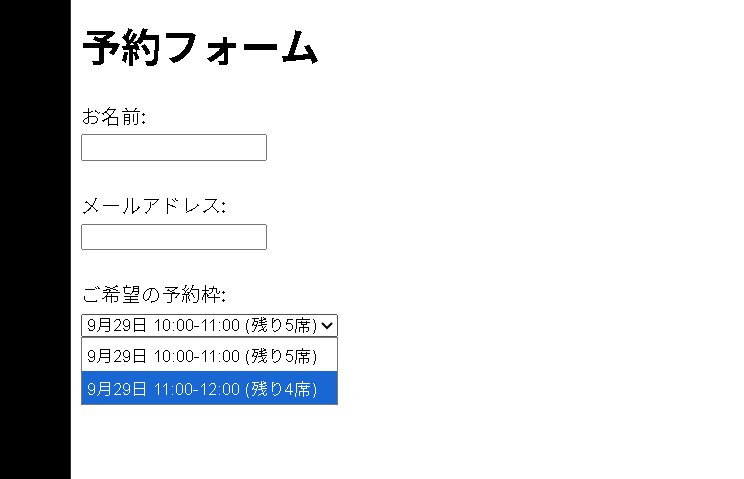
- URLが発行されるので、そのURLにアクセスすれば予約フォームが表示されます。



まとめ
メリット
- より柔軟なデザイン: HTML/CSSを自由にカスタマイズして、ブランドイメージに合わせた予約フォームを作成できます。
- リアルタイム更新: フォームを送信すると、即座に残り枠が更新されるため、Googleフォームのようにページの再読み込みを待つ必要がありません。
- ユーザー体験の向上: フォーム送信後に完了メッセージを表示するなど、動的な挙動を実装できます。
デメリット
- 実装の手間: Googleフォームに比べて、HTMLやJavaScriptの知識が必要となり、設定が複雑になります。
- 認証の必要性: 最初のアクセス時にはGoogleアカウントの認証を求められる場合があります。
ご参考ください。